Slip POS
Free plan Local-first Tutorials First 10 Program Download Slip
EN / 繁中 / 日本語

Tutorial list

  • Tutorial overview
  • Quick menu import with AI
  • Printer setup & testing
  • First time opening flow
  • Categories & modifiers setup
  • Shift handoff & end-of-day close (coming soon)

Printer setup & testing (beginner)

If this is your first printer setup, learn the layout first, then pair real hardware.

This flow starts from Printer management and walks through routing and template preview.

Prerequisites:

  • You are currently on iPad Settings
  • You have entered the settings screen with the sidebar

Steps

  1. Step 1 (F01): Open the Printer screen

    Tap Printer in the left sidebar and confirm you're in the correct module.

    • Register button appears at top-right
    • Registered printer list appears in the center
    • Receipt template section appears below
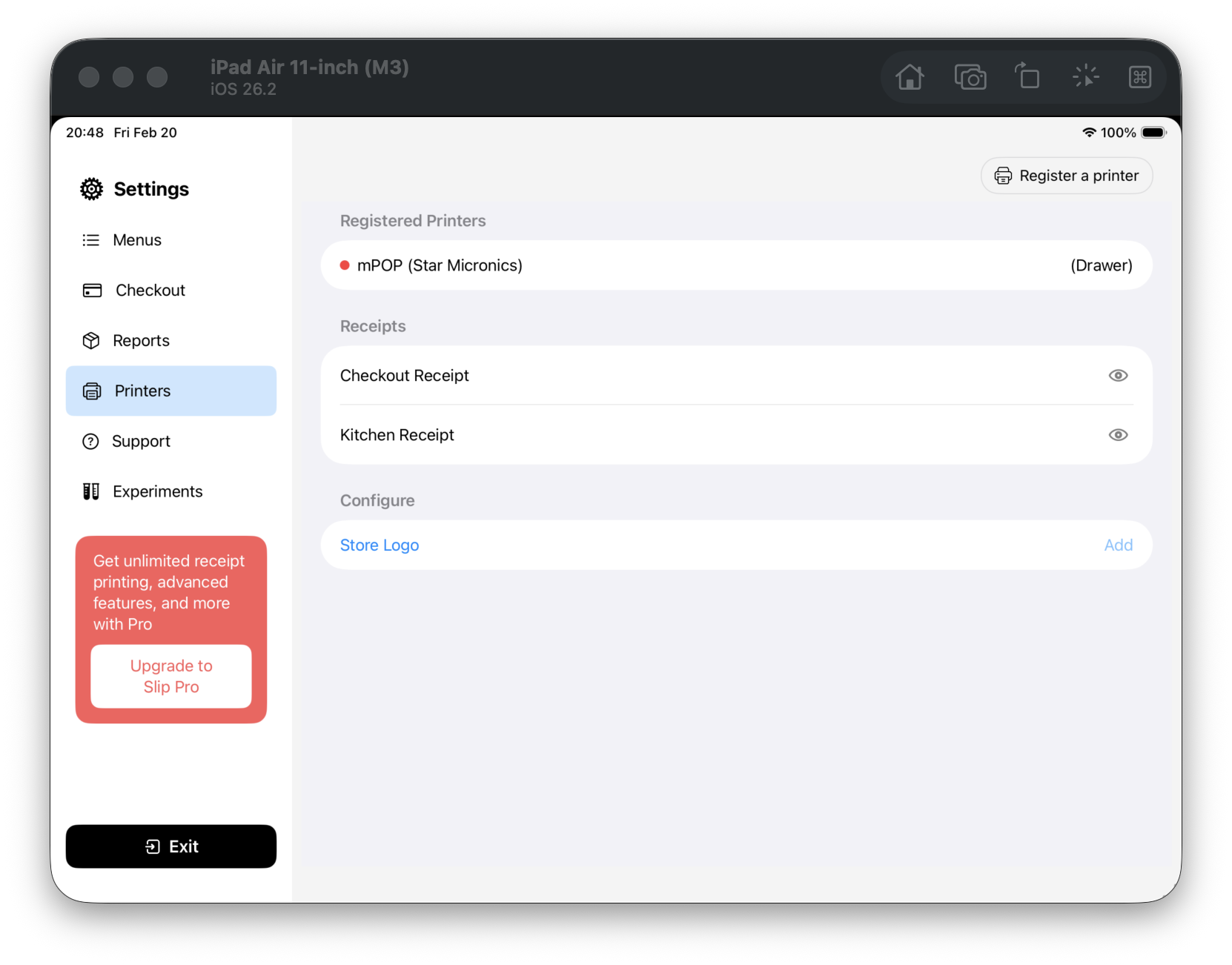
    F01 Printer management screen
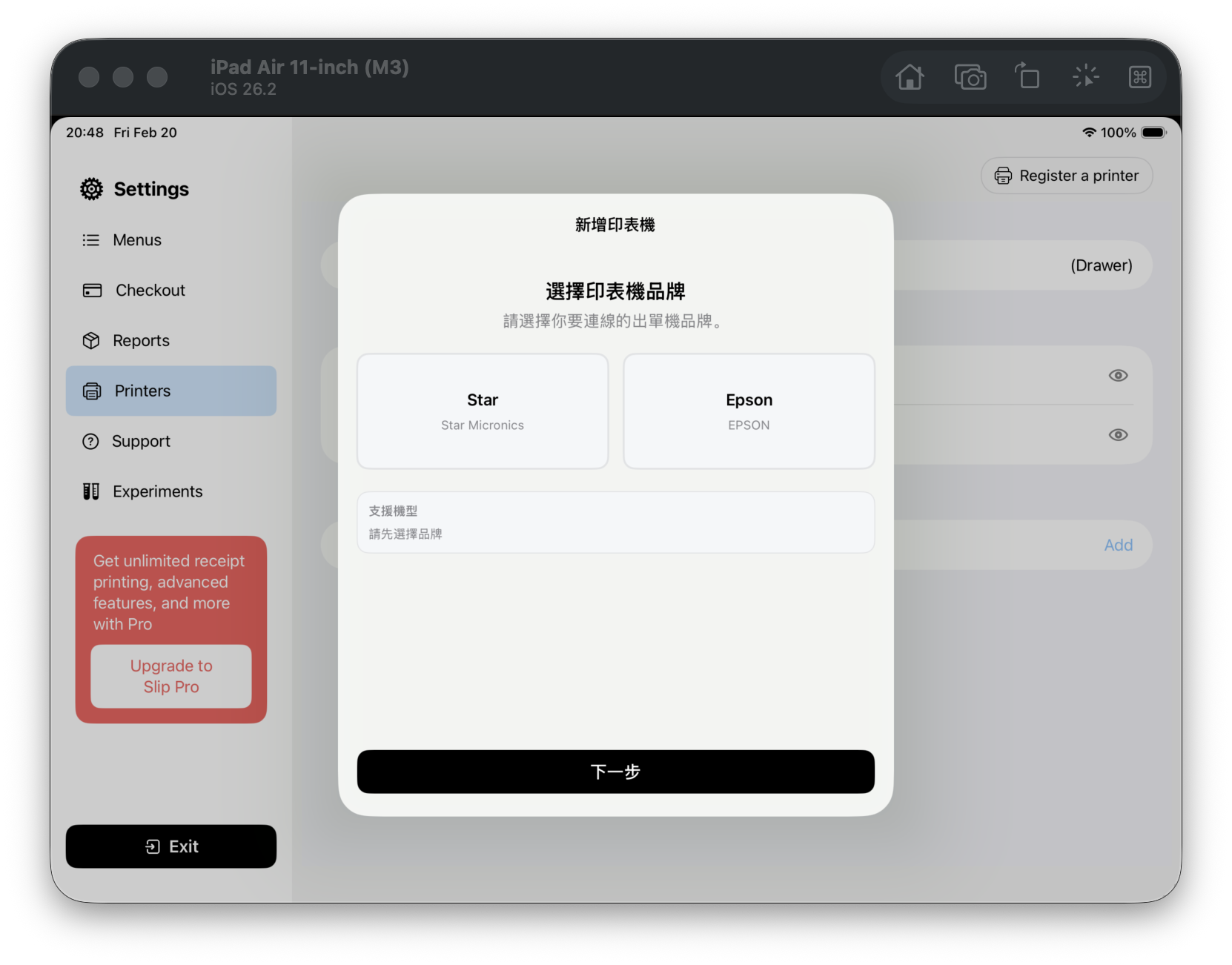
  2. Step 2 (F02): Start printer registration

    Tap Register at top-right to enter brand selection.

    • You can see Star / Epson brand cards
    • Next is initially disabled
    F02 Open printer brand selection
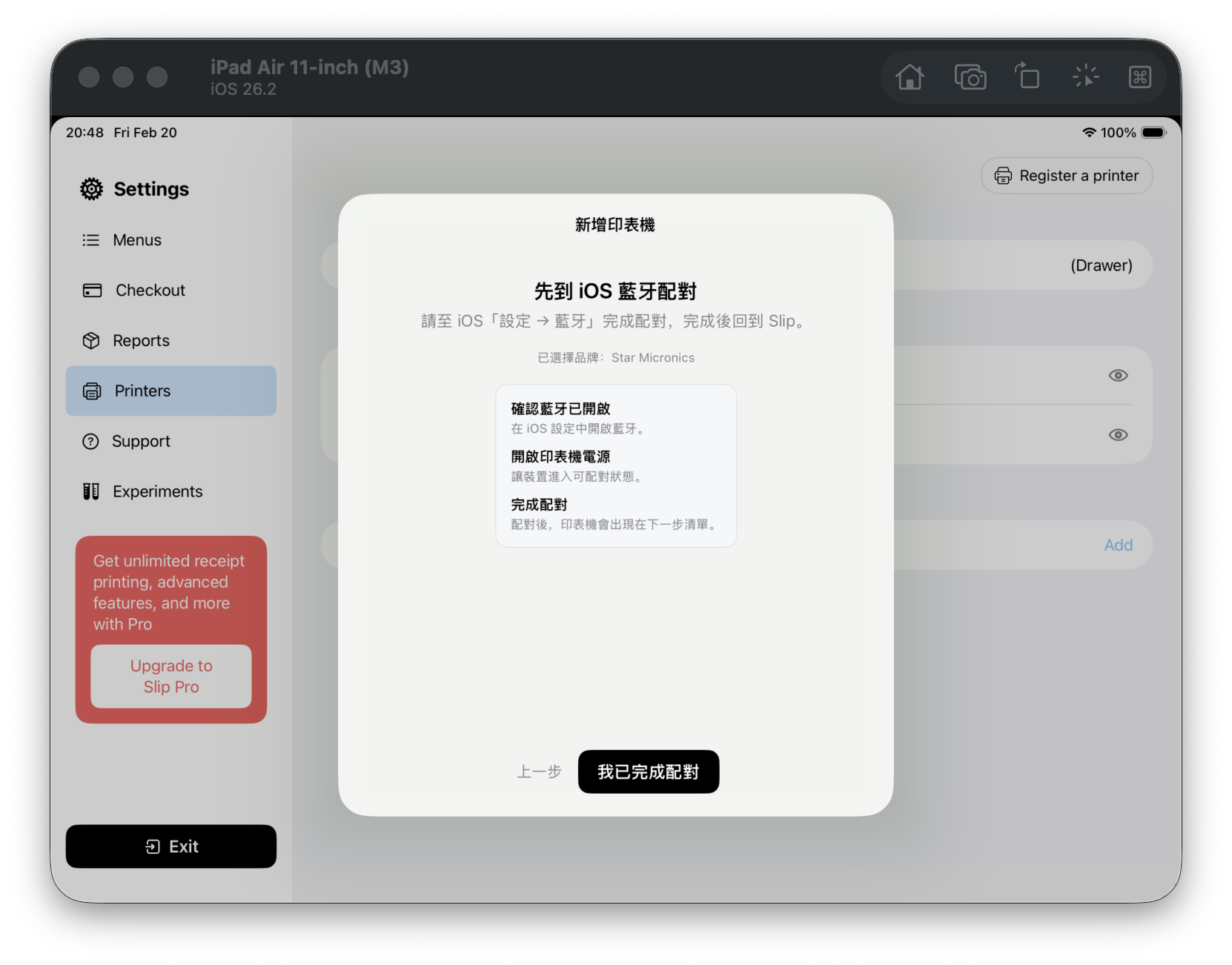
  3. Step 3 (F03): Choose brand and go to pairing guide

    Select a brand (for example, Star), then tap Next.

    • You enter the iOS Bluetooth pairing instructions
    • You can see I have paired
    F03 Pairing guide step
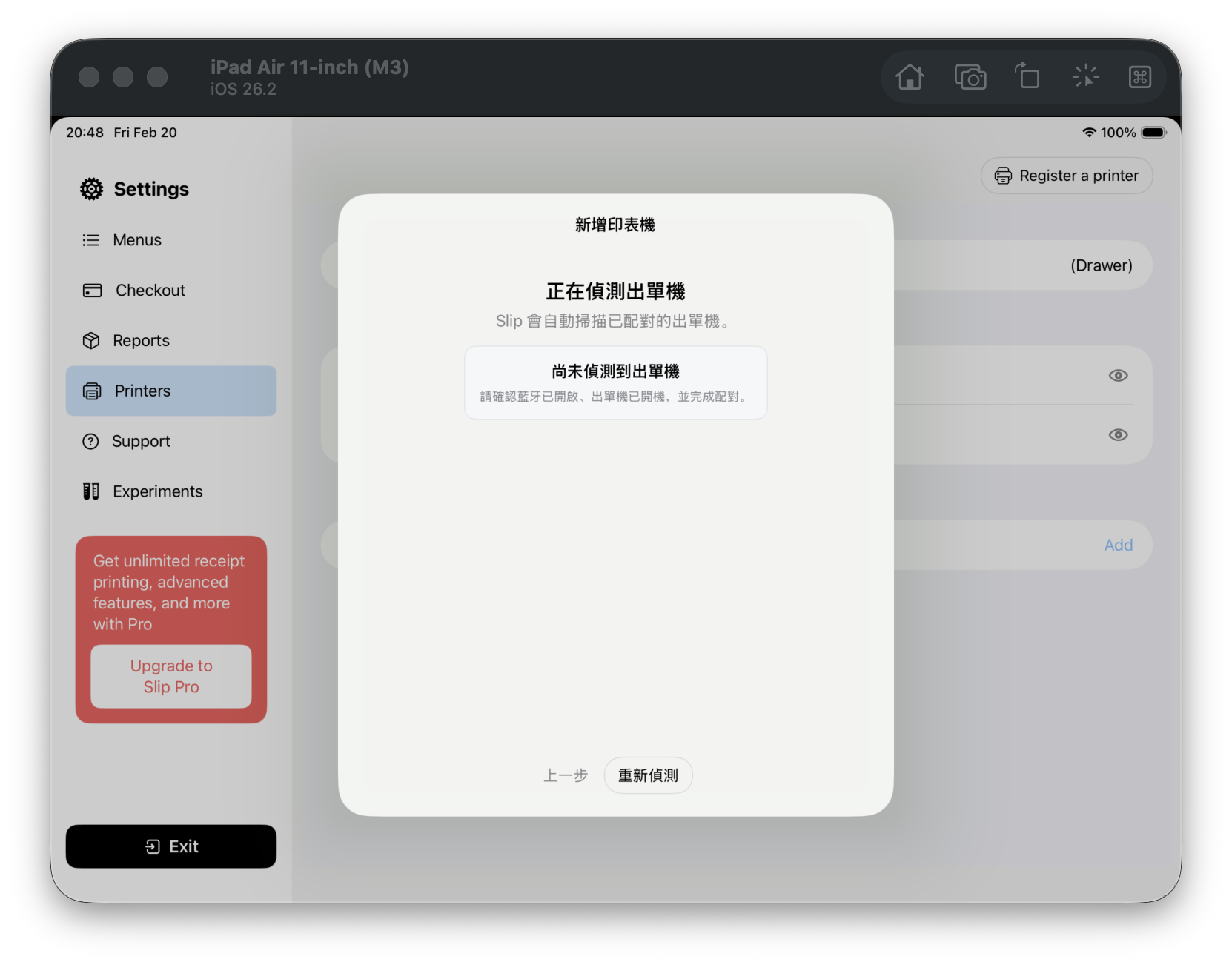
  4. Step 4 (F04): Go to device discovery

    On the pairing guide screen, tap I have paired.

    • You enter the discovery step
    • You can see Retry discovery
    F04 Discovery step
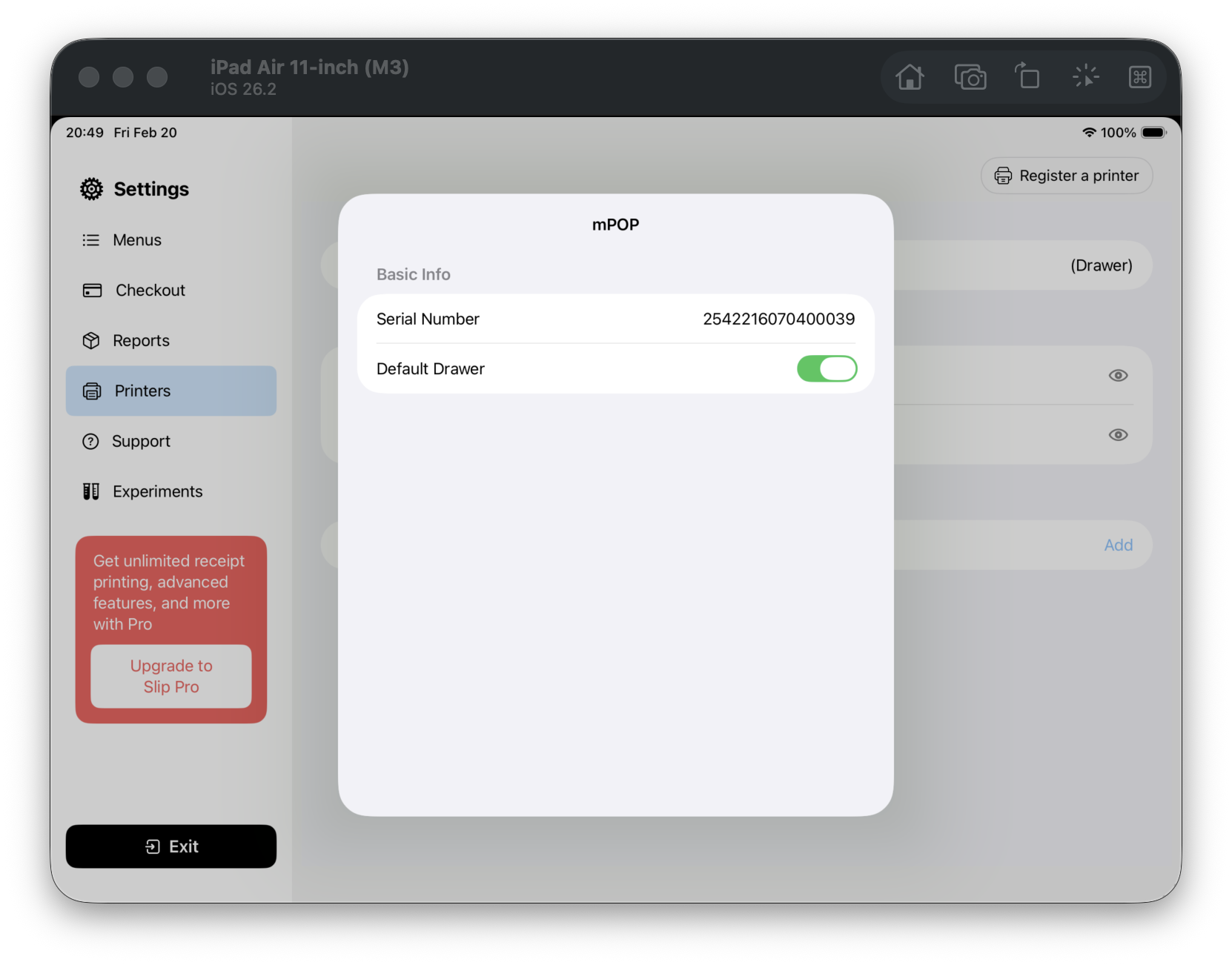
  5. Step 5 (F05): Check registered printer info

    Back on Printer management, tap a registered printer.

    • Printer info screen opens
    • Default Drawer toggle is visible
    F05 Registered printer info
  6. Step 6 (F06): Open receipt template routing

    In Receipt template, tap Checkout Receipt.

    • Print Routing screen opens
    • You can see printers that can be added to routing
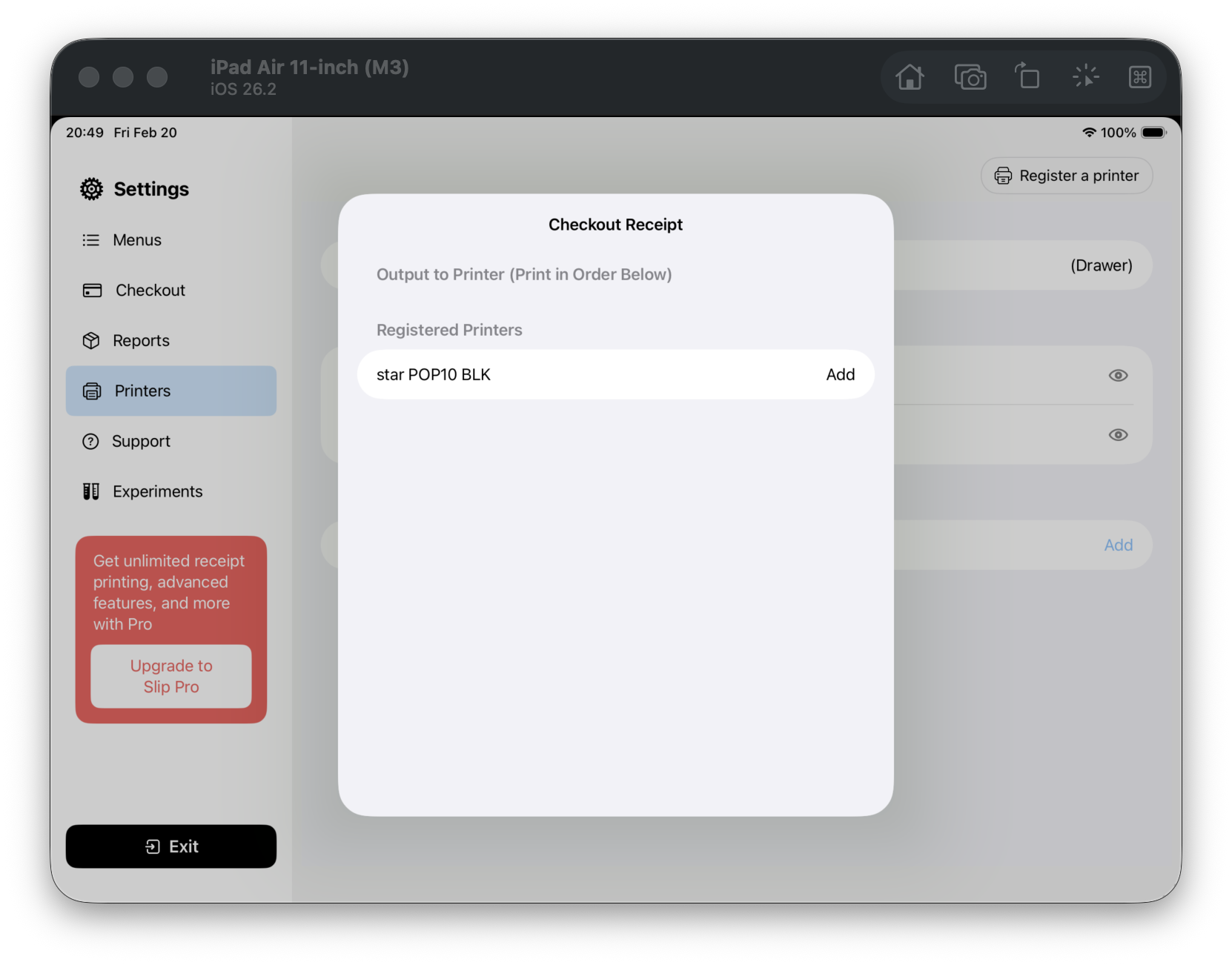
    F06 Receipt template routing
  7. Step 7 (F07): Add one route

    On the routing screen, tap Add on the right side of a printer row.

    • The new route appears in the output order area
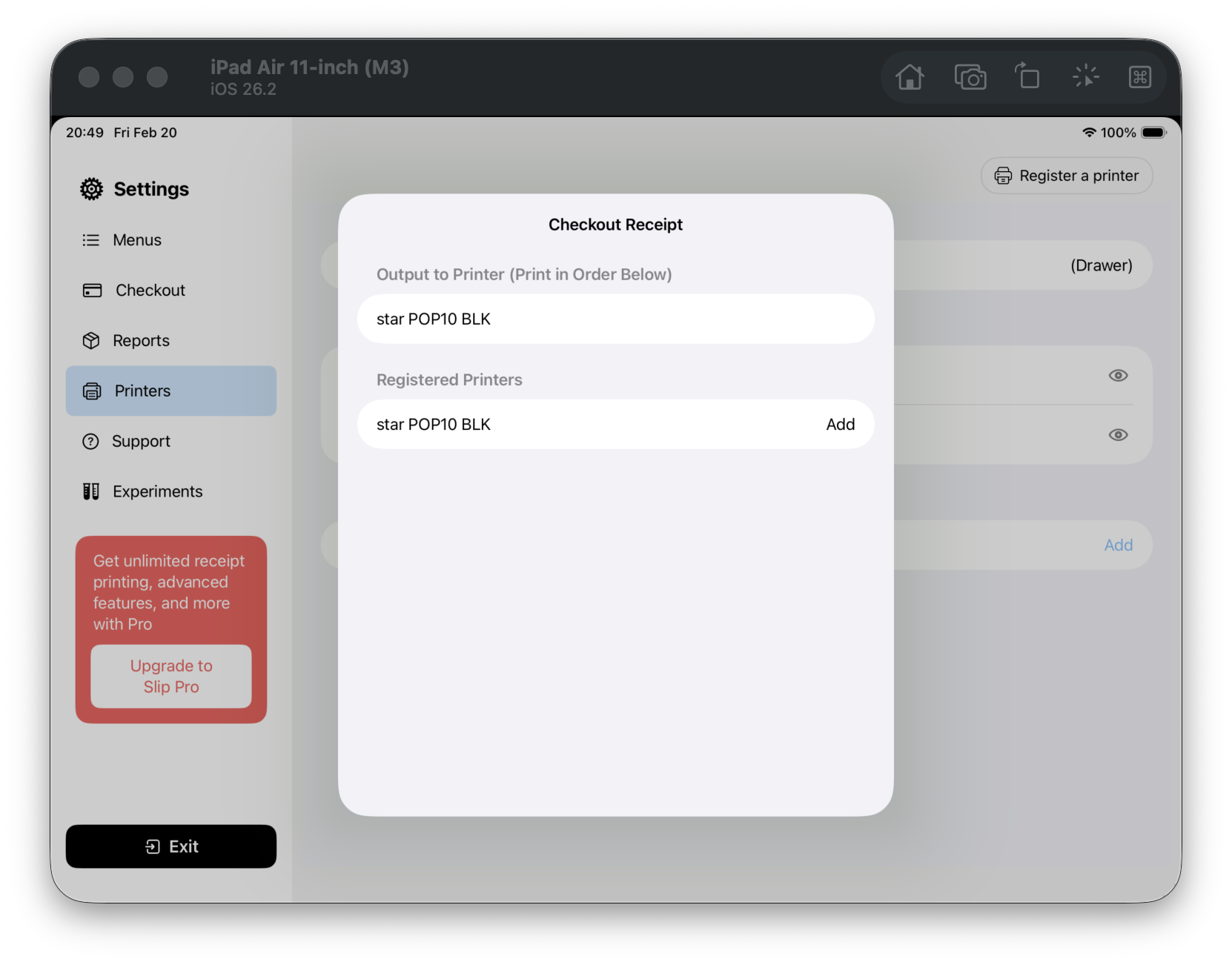
    F07 Added routing
  8. Step 8 (F08): Open template preview

    Back on Printer management, tap the preview icon on the right of Checkout Receipt.

    • A template preview sheet opens
    • You can scroll and review the full receipt content
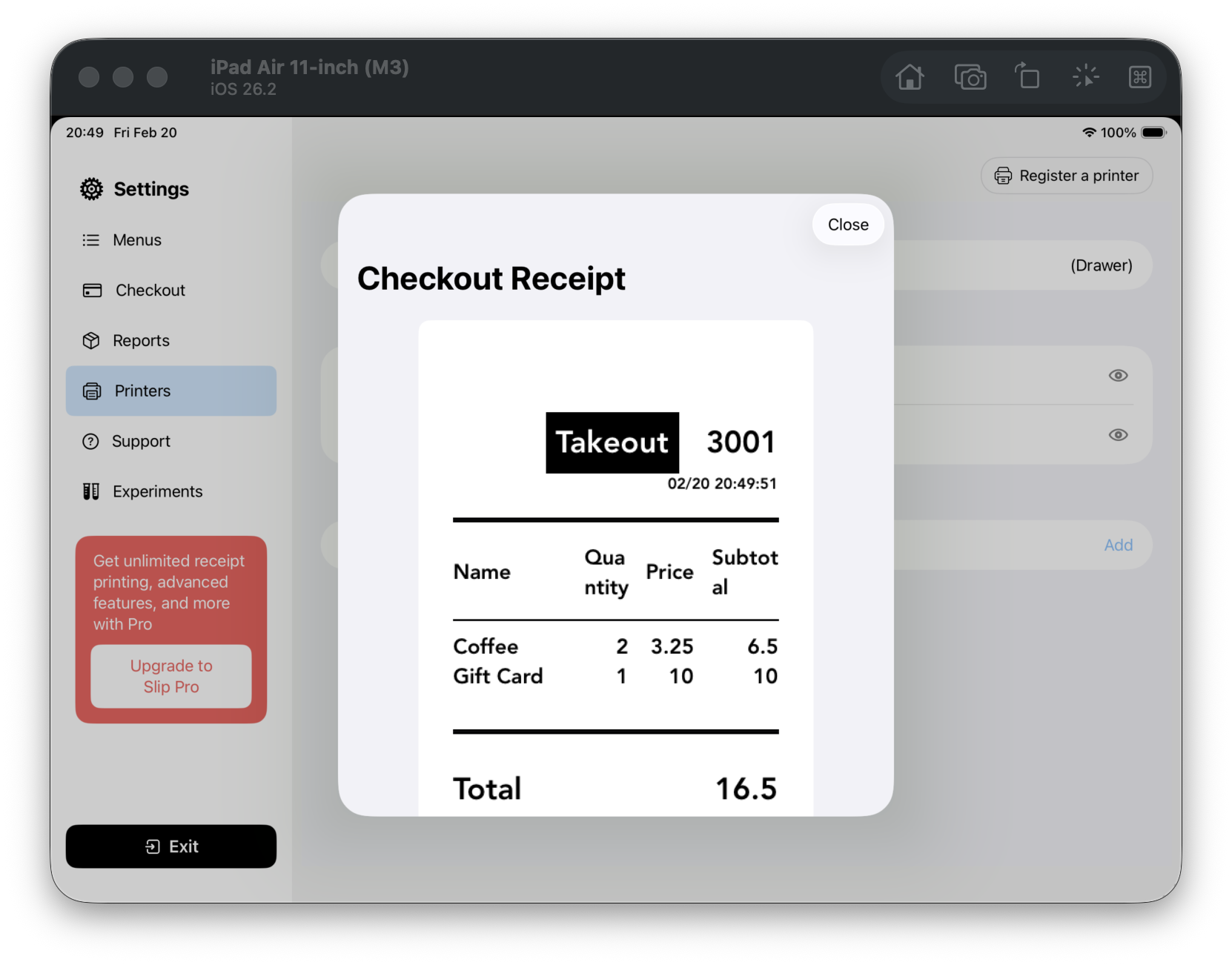
    F08 Template preview

Common issues

  • Can't find registered printers: confirm registration completed, or re-open Printer management.
  • Device not detected: go to iOS Settings > Bluetooth and confirm printer is paired and powered on.

Flow mapping

This guide covers F01 ~ F08 (Printer Settings module).

Slip POS

A POS that won't fail on the floor

Product
  • Reliable on site
  • Free plan
  • Local-first
Program
  • First 10 Program
  • Stories
Support
  • Tutorials
  • FAQ
  • Contact
  • Support page
Legal
  • Privacy policy

© 2026 Slip POS. All rights reserved.