Slip POS
Free plan Local-first Tutorials First 10 Program Download Slip
EN / 繁中 / 日本語

Tutorial list

  • Tutorial overview
  • Quick menu import with AI
  • Printer setup & testing
  • First time opening flow
  • Categories & modifiers setup
  • Shift handoff & end-of-day close (coming soon)

First opening flow (after menu setup)

For beginners with menu already set, finish the first order-to-submit check in about 5 minutes.

This flow starts from cashier, completes one order, and verifies data appears in order list.

Prerequisites:

  • Menu setup is complete (at least 1 section and 1 item)
  • You are currently on iPad cashier screen

Steps

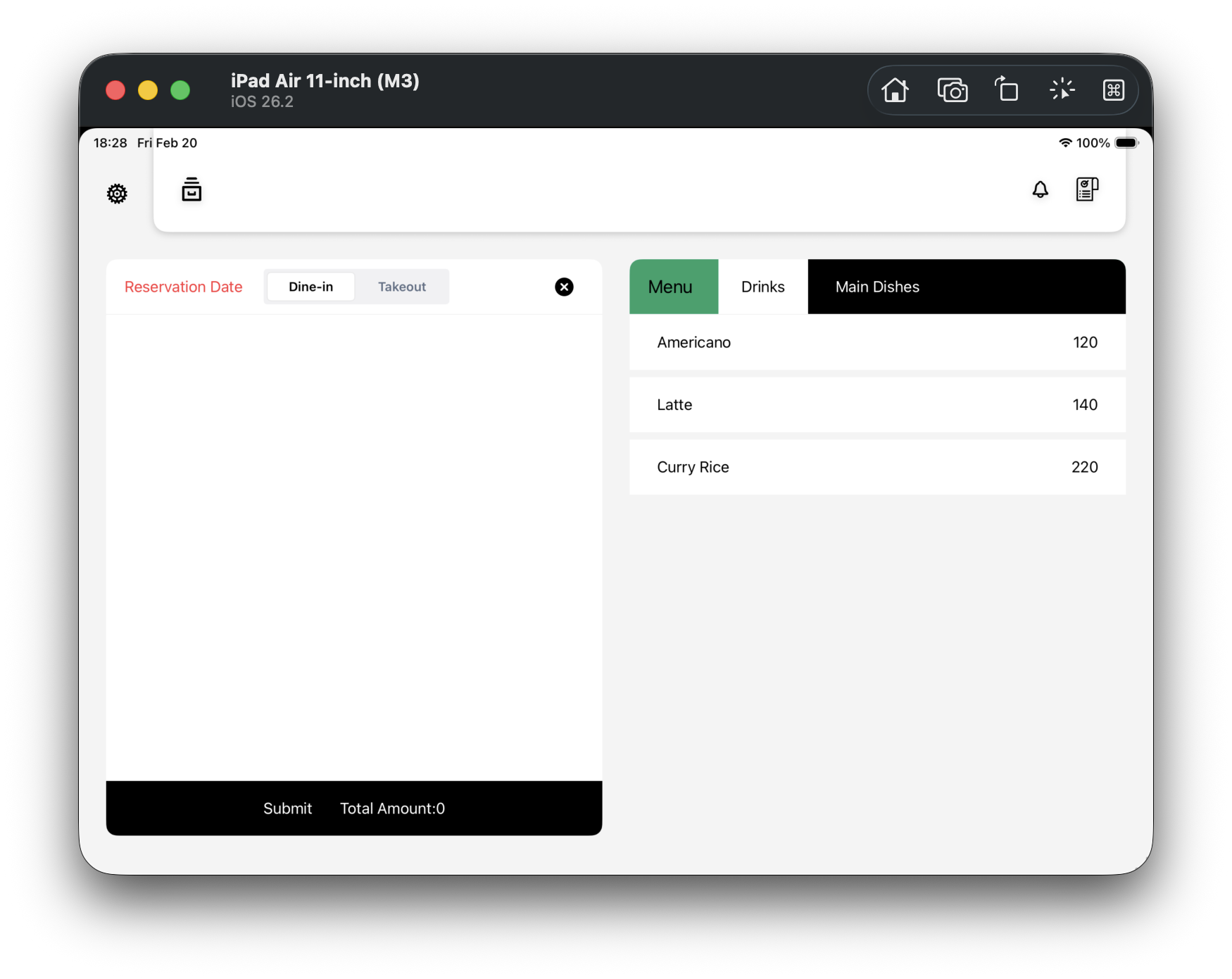
  1. Step 1 (F01): Confirm the screen is ready for ordering

    Check that menu items exist on the right and the order list on the left is empty.

    • Menu item list is visible
    • Submit appears at the bottom
    • Total Amount: 0 is shown
    F01 Cashier ready for ordering
  2. Step 2 (F02): Select Dine-in or Takeout

    At the upper-left, tap Dine-in / Takeout once.

    • This switch affects delivery type for the order
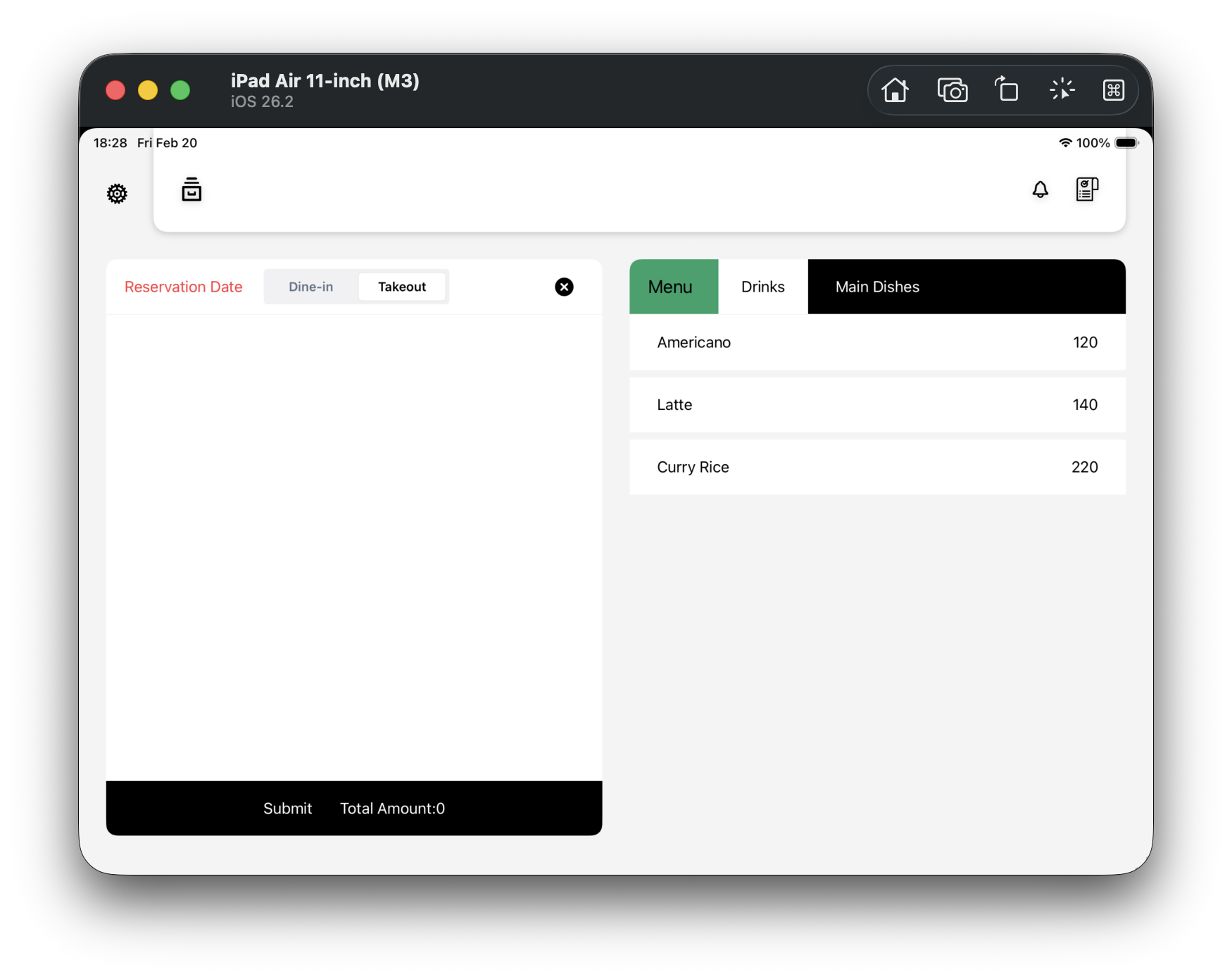
    F02 Dine-in / Takeout toggle
  3. Step 3 (F03): Add first item

    Tap one menu item on the right (for example, Americano).

    • The item appears in the order list on the left
    • Total Amount changes from 0 to the item price
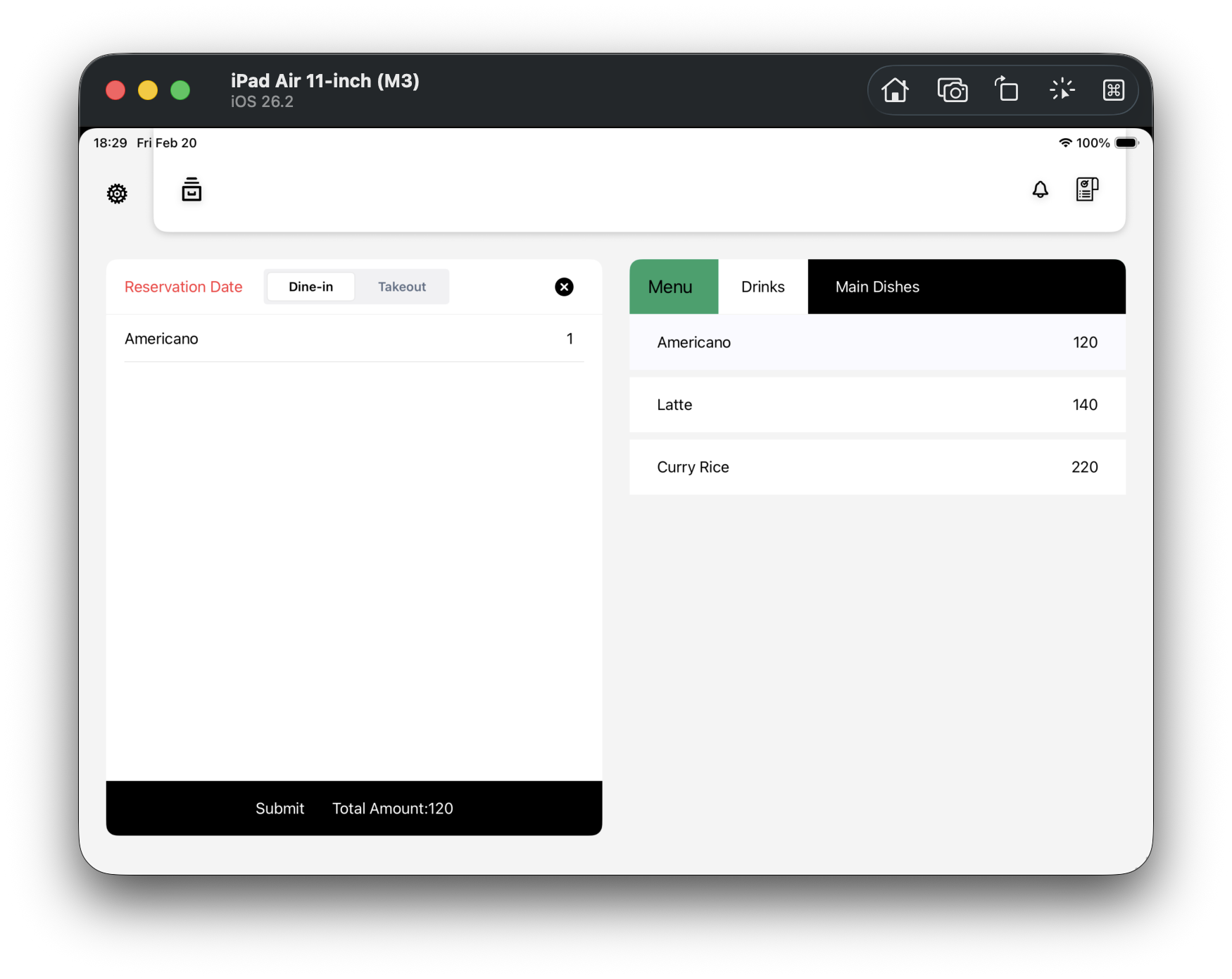
    F03 Add first item
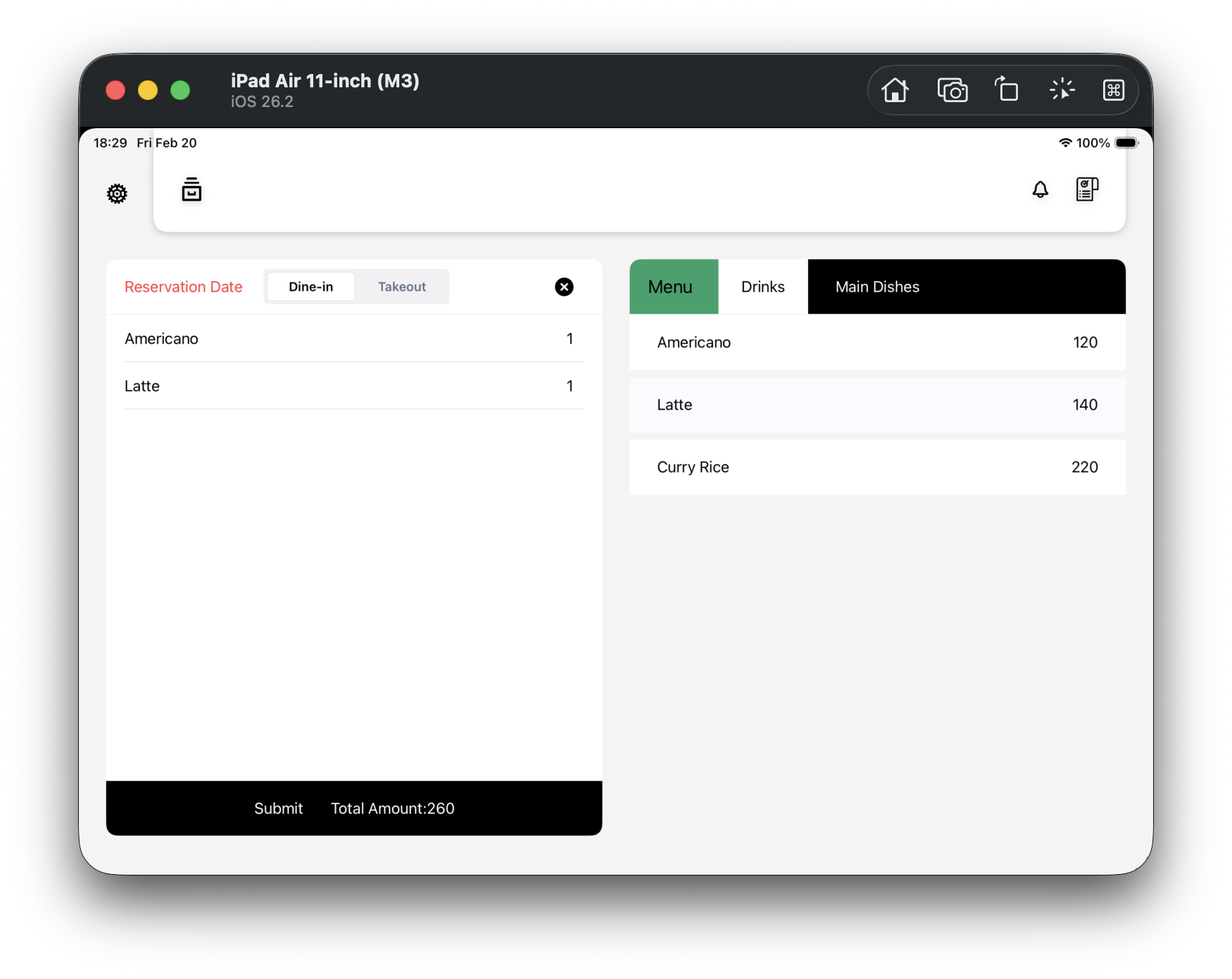
  4. Step 4 (F04): Tap same item repeatedly to verify quantity increments

    Tap the same item one or two more times.

    • Quantity increases on the same row instead of creating duplicate rows
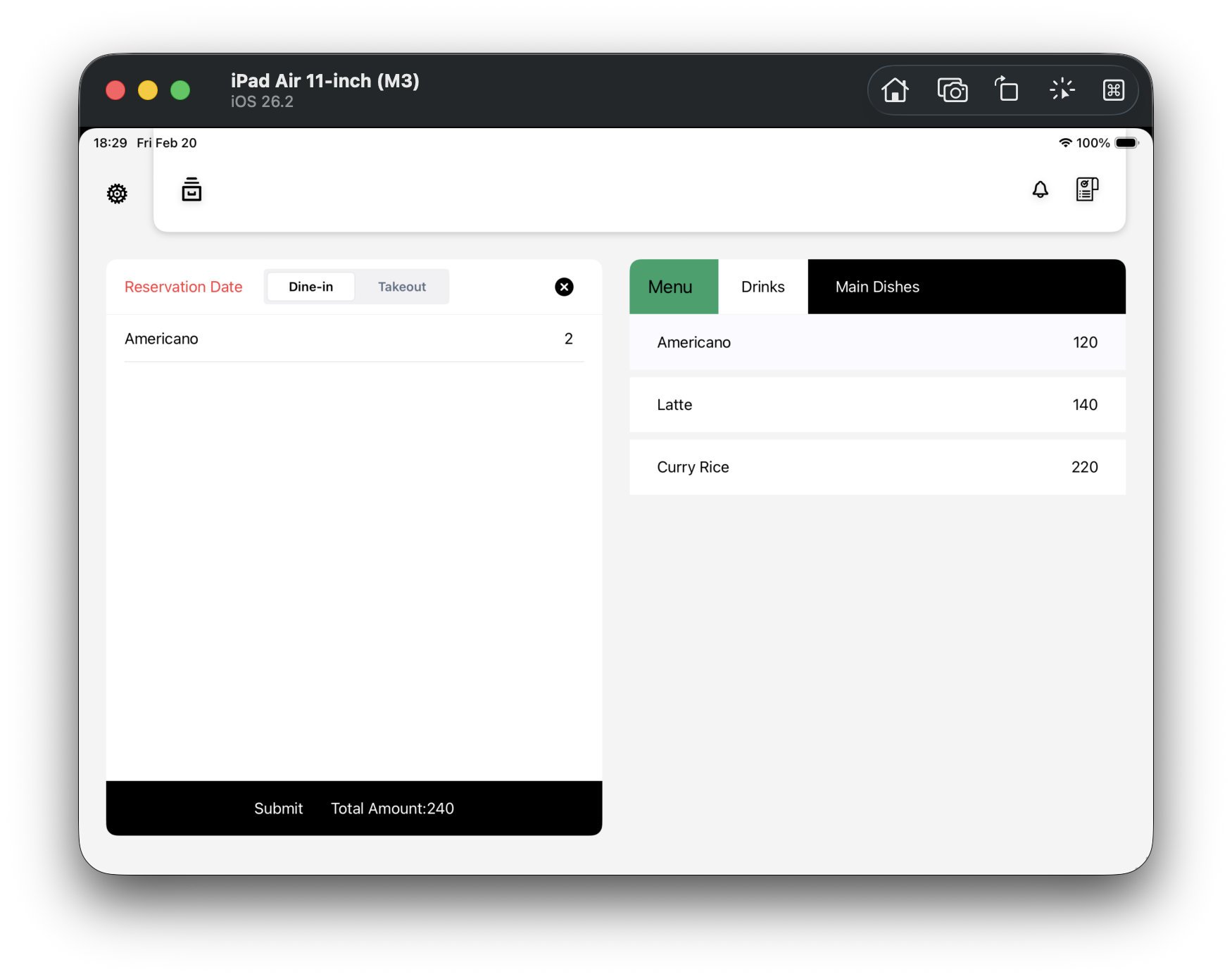
    F04 Quantity increment on same item
  5. Step 5 (F05): Add second item and verify total

    Tap another item (for example, Latte).

    • Order now has at least two items
    • Total Amount increases correctly
    F05 Total updates after second item
  6. Step 6 (F06): Submit order

    Tap Submit at the lower-left.

    • The sale is created successfully
    • Order draft is cleared
    • Screen returns to ready-for-next-order state
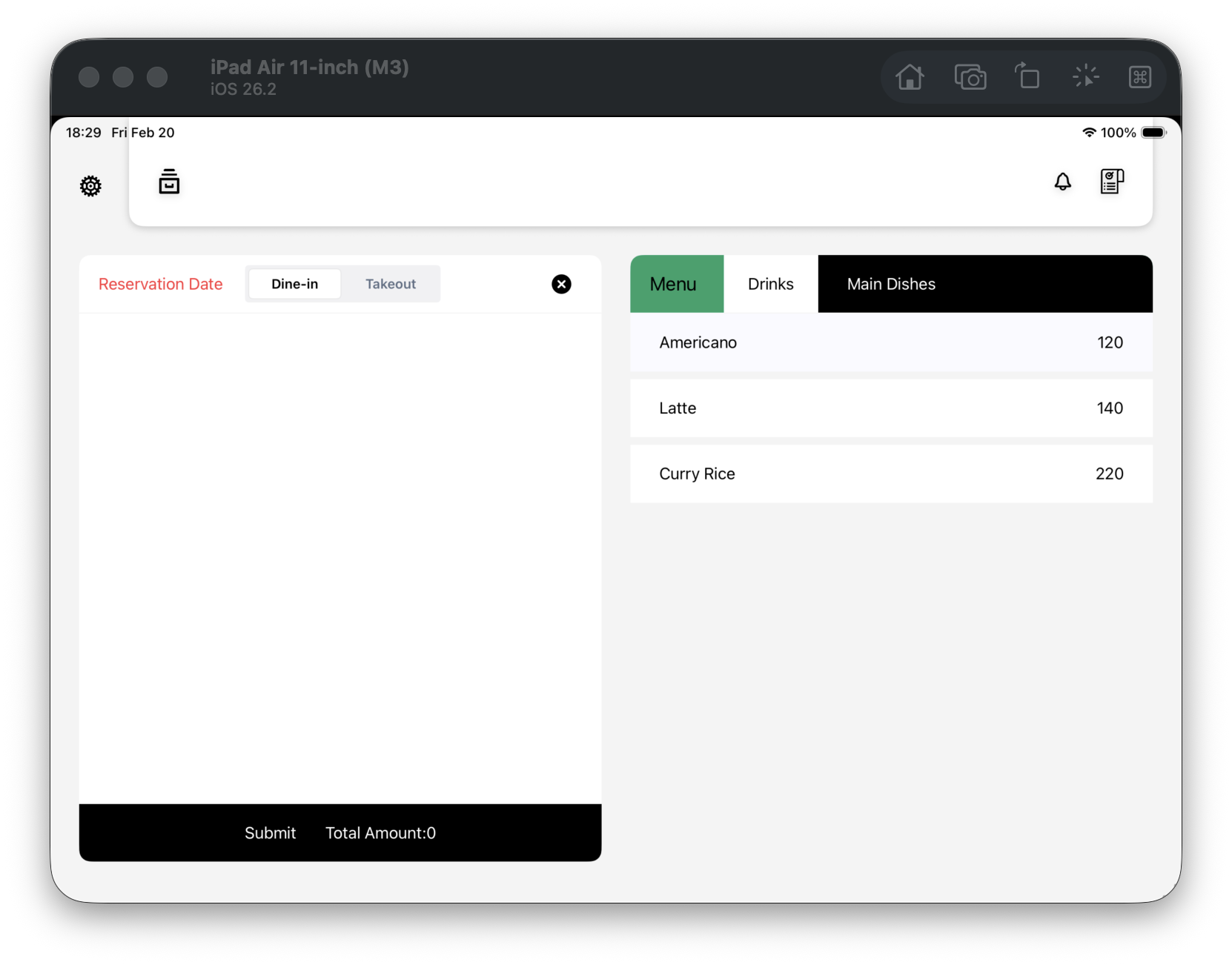
    F06 Submit order
  7. Step 7 (F07): Verify it in order list

    Tap the order list button in the top-right toolbar to enter OrderListScreen.

    • You can see the order you just submitted
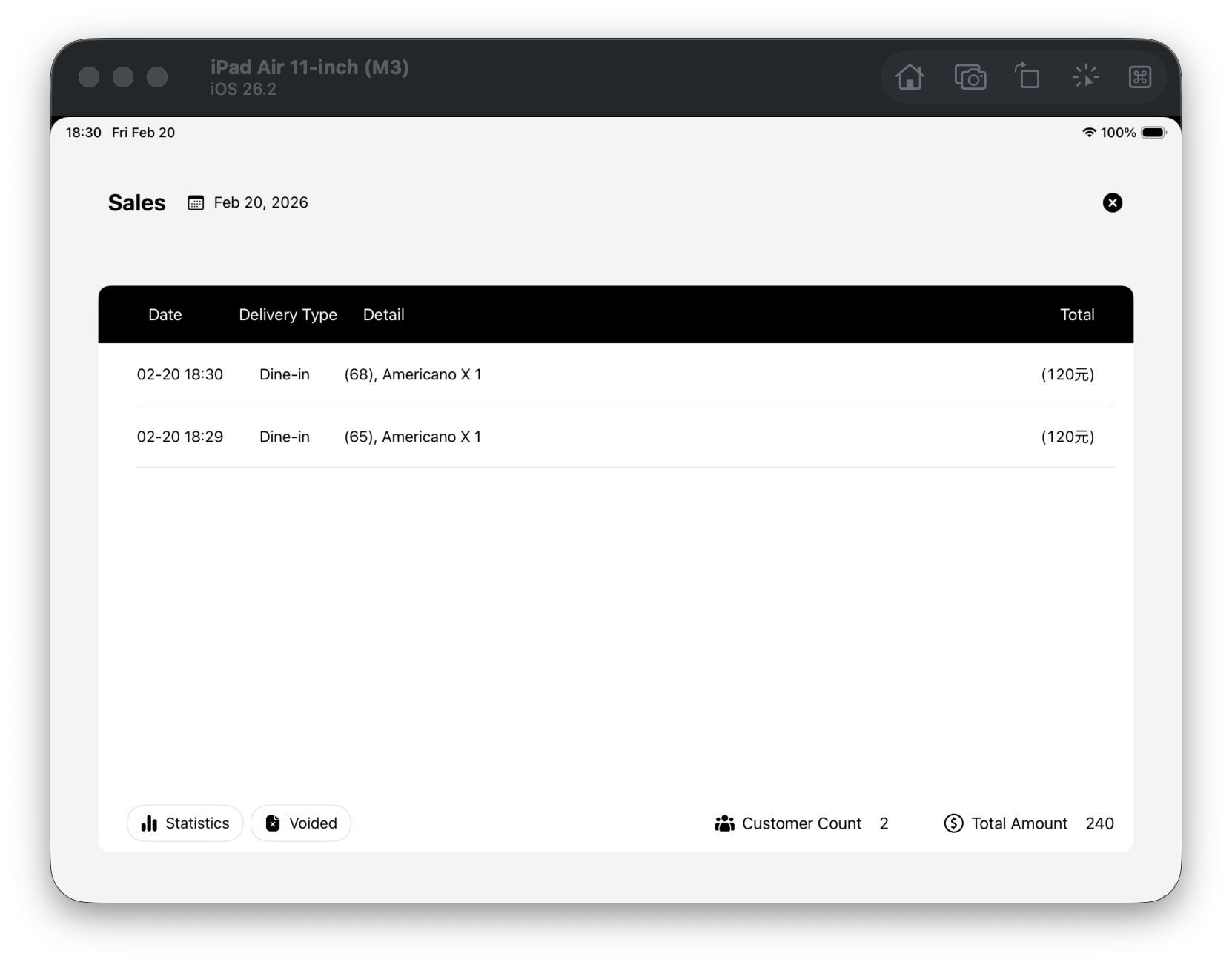
    F07 Open order list

Common issues

  • Submit does nothing: make sure there is at least one item on the left (empty orders cannot be submitted).
  • No menu items visible: go back to menu settings and confirm available items and sections exist.

Flow mapping

This guide covers F01 ~ F07 (POS Sales module).

Slip POS

A POS that won't fail on the floor

Product
  • Reliable on site
  • Free plan
  • Local-first
Program
  • First 10 Program
  • Stories
Support
  • Tutorials
  • FAQ
  • Contact
  • Support page
Legal
  • Privacy policy

© 2026 Slip POS. All rights reserved.